Most small offices never really chose their Wi-Fi. The internet provider dropped off a box, someone taped the password to the wall, and it has mostly worked ever since. But that one network now carries your practice or accounting software, client files, the card reader, the printer, everyone’s phone, and whoever is in the waiting room. Here’s what’s going on with that box, and what a sensible office setup looks like.
Why the ISP router struggles in an office
Consumer and ISP routers are built for households. Offices ask for more.
- Too many devices. Computers, phones, printers, TVs, cameras, door systems, imaging equipment, and every guest’s phone. Even a 10-person office can have several dozen. All-in-one home routers often slow down or drop connections when that many devices compete.
- One network for everyone. Most give you a single network, or a basic “guest” toggle that varies in how well it really isolates guests.
- Coverage gaps. One box in a closet has to push through walls and cabinets. Back offices and conference rooms suffer first.
- Updates nobody checks. Routers need security fixes. The FTC tells small businesses to change the default admin password, turn off remote management, and use WPA2 or WPA3 encryption (FTC: Cybersecurity for Small Business). That assumes someone is actually looking after the router.
- No visibility. When things slow down, a home router can’t tell you which device or which spot is the problem. You restart it and hope.
What bad Wi-Fi actually costs
It rarely shows up as a line item. It shows up as friction: check-ins timing out at the front desk, video calls freezing in the meeting room, staff switching to phone hotspots (moving business data over networks you don’t control), and the office manager losing an hour a week restarting things.
A hypothetical: a five-person agency’s Wi-Fi drops for a few minutes several times a day. Each drop interrupts a quote or a call. Nobody tracks it because each one is small, but over a year it’s real hours and a lot of quiet frustration.
Keep guest and staff networks separate
If you keep one idea from this guide, keep this one: guests, personal phones, and smart gadgets shouldn’t share a network with the computers that hold client data.
The FTC says to limit your main business network to business-owned or managed devices, and to make sure guest Wi-Fi is “separate from and not connected to your business network” (FTC). It also explains that segmenting a network contains damage if one part is compromised, like watertight compartments on a ship (FTC: Segment your network).
A well-set-up small office usually has three lanes:
- Staff: office computers and business devices.
- Guest: internet only. Guests can’t see your printers, files, or each other.
- Devices: TVs, cameras, smart speakers, and door systems.
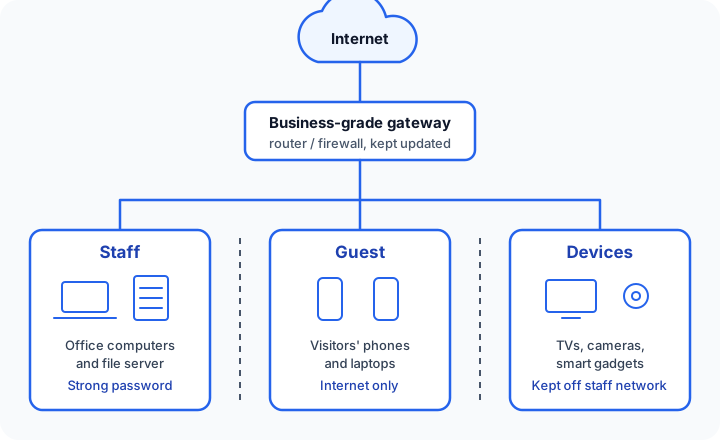
On business-grade equipment these are separate virtual networks (VLANs) with rules about what can talk to what. Staff just pick the right network name.
Confidentiality and compliance
- Dental and medical: the HIPAA Security Rule expects reasonable, documented safeguards for electronic patient information. Patient guest Wi-Fi on the same network as the practice-management system is hard to defend.
- Law firms: the State Bar of California’s Formal Opinion 2010-179 asks lawyers to weigh a technology’s security and the sensitivity of the information before using it with client data. It specifically notes that an unsecured wireless network can put duties of confidentiality and competence at risk (State Bar of California, Formal Opinion 2010-179).
- CPAs, insurance, and real estate handle Social Security numbers and financial documents daily. Clients assume you’re careful.
Signs you’ve outgrown your setup
- Wi-Fi is fine at 8 AM and sluggish by 10.
- There are rooms where people “know not to take calls.”
- Guest and staff passwords are the same, or never change.
- Former employees could probably still connect.
- Nobody knows the router’s admin login.
- You’ve added extenders and things got more confusing.
- The team grew or moved suites, but the network didn’t change.
What a proper small-office setup looks like
- A business-grade router/firewall that separates networks, gets regular updates, and can be managed remotely.
- Ceiling- or wall-mounted access points placed where people actually work, working together as one network.
- Separate staff, guest, and device networks.
- Central monitoring, so problems can be spotted before staff complain.
- Documentation: admin logins in a password manager and a simple map of what’s where.
Ubiquiti UniFi is a popular, affordable example. TP-Link Omada, Cisco Meraki, and Aruba Instant On are good alternatives. The design matters more than the brand.
A quick self-check
- Do you know who can log in to your router, and is that password stored safely?
- Is guest Wi-Fi separate from the network your office computers use?
- Has the staff Wi-Fi password changed since the last person left?
- Is your network gear getting security updates, and do you know how?
- Does Wi-Fi work well everywhere people work and meet?
- Are TVs, cameras, and gadgets kept off the staff network?
- If the internet dropped, could you tell whether it’s your provider or your equipment?
- Is your network setup written down anywhere?
Three or more “no” or “not sure” answers usually means your network has outgrown its original setup. That’s normal and very fixable.
How we’d solve this
If you hire InstallMyTech for Business Wi-Fi Setup, here’s what to expect. Pricing is $499–$1,200 for the work, depending on office size and complexity, plus hardware.
- Assess first. We look at your current equipment, internet service, floor plan, and problem spots, then give you a written, fixed-price quote before any work starts.
- Business-grade gear, in your name. Our usual recommendation is Ubiquiti UniFi for its reliability and value, but we’ll work with other good brands if they suit you better. You buy the hardware in your business’s own name, so you own it outright and aren’t locked in to us.
- Separate networks. Staff, guest, and device networks, each with sensible rules about what can reach what.
- Coverage planning on your existing wiring. We place access points using the network cabling and outlets you already have. We don’t run new cable. If you need it, we’ll tell you and refer you to a licensed low-voltage contractor.
- Secure configuration. Strong unique admin credentials, current firmware, WPA2/WPA3 encryption, and remote management locked down.
- Handoff documentation. A plain-English summary of what’s installed, which network is for what, and where the admin logins are stored, so anyone can support it later.
- Optional ongoing care. On one of our Managed IT Support Plans ($99–$199/month base + $35–$75 per user, month-to-month), we can keep an eye on updates and alerts for you.
We can’t promise perfect Wi-Fi in every building. Construction, neighbors’ networks, and your internet provider all play a part. We’ll tell you honestly what to expect before you spend anything.
Where to go from here
You can start yourself: change default passwords, turn on a separate guest network, and write down what you have. If you’d rather have someone look at the whole picture, our free 30-minute IT check (https://installmytech.com/free-it-check/) covers your Wi-Fi and network. You’ll get a short list of what’s fine, what to fix, and what can wait.