Plenty of small offices still run on local data, and often for good reasons. Dental imaging and charting software runs on an office server. The books are in QuickBooks Desktop. Legal documents sit on a shared drive or a NAS (a network storage box) in the supply closet. Sometimes it’s simpler than that: everything important lives on the front-desk computer, with an external drive plugged in “just in case.”
Local systems can be fast, familiar, and fully under your control. But it all sits in one room, which means one bad event can take all of it. This guide covers how to protect that data properly, mainly by getting a safe copy somewhere else.
Why local data is at risk
- Drives fail. Hard drives and SSDs wear out, often with little warning. A server or NAS that has run quietly for years is closer to that day than when it was new.
- Ransomware spreads over the network. One infected computer can encrypt every shared folder and mapped drive it can reach, including the backup drive if it’s connected. CISA warns that attackers deliberately look for reachable backups to delete or encrypt them (CISA #StopRansomware Guide).
- Theft. A server or NAS is small enough to carry out during a break-in.
- Fire and water. A sprinkler, a burst pipe, or a leak from the unit upstairs doesn’t care how many copies are in the same closet.
- The one-USB-drive trap. A single external drive that’s always plugged in, years old, and never checked is often the whole backup plan. It’s in the same room, it can be encrypted along with everything else, and it may have stopped working months ago without anyone noticing.
The 3-2-1 rule, with an offsite copy that can’t be erased
- 3 copies of important data: the original plus two backups.
- 2 different kinds of storage, for example a local backup device plus a cloud backup service.
- 1 copy offsite, out of reach of whatever happens to the office.
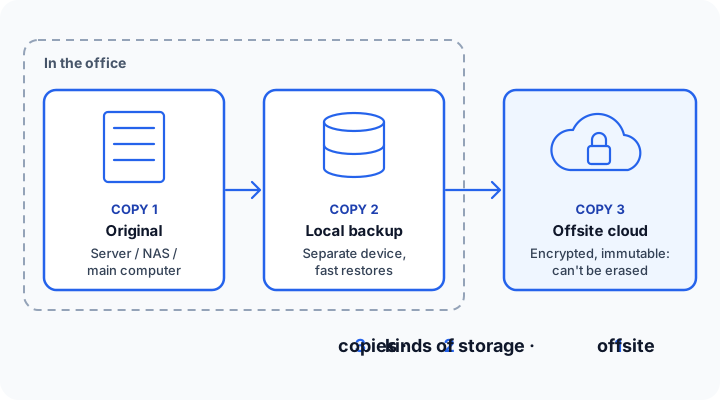
The offsite copy should be immutable or offline: once written, it can’t be changed or deleted for a set period, even by someone with your passwords. CISA recommends “offline, encrypted backups of critical data,” tested regularly (CISA). Reputable cloud backup services offer this. That’s where the cloud is genuinely the best tool: as a safe, distant copy of data you keep running locally.
A RAID or NAS isn’t a backup
Many NAS units and servers use RAID, which spreads data across several drives so one failed drive doesn’t take the system down. That’s useful, but it protects uptime, not data. If a file is deleted, overwritten, or encrypted by ransomware, RAID faithfully does the same thing to every drive. A NAS is also just one more device in the same closet. Treat it as the original, not the backup.
Back up the database, not just the files
Practice-management, imaging, accounting, and document systems usually store their data in a database. Copying the files while the program is running can produce a backup that won’t restore, because the copy was taken mid-change.
The safer approach:
- Use the software’s own backup feature, or a backup tool that supports that database, on a schedule.
- Confirm where the software saves its backups, and include that location in the offsite copy.
- Ask the vendor what a supported backup and restore looks like. Many have documented steps.
- Remember the extras: imaging folders, scanned documents, templates, and license keys.
Test your restores
A backup you’ve never restored from is a hope, not a plan. CISA advises regularly testing backups in a realistic recovery scenario (CISA). For dental and medical offices, the HIPAA Security Rule requires a data backup plan and a disaster recovery plan, with procedures to “create and maintain retrievable exact copies” of electronic patient information (45 CFR 164.308(a)(7)).
A hypothetical: a three-person office’s accounting server won’t boot on a Monday. There is a backup, but it turns out to be a file copy taken while the database was open, and the accounting program can’t read it. Months of entries have to be rebuilt by hand. One test restore would have caught the problem.
If you’re mostly in the cloud
Offices that already run on Google Workspace or Microsoft 365, with little stored locally, are generally in better shape. The one remaining gap is that these services protect against their failures, not yours. Deletions, hacked accounts, and departing employees’ data are largely on you, and Microsoft itself recommends you “regularly backup Your Content and Data” (Microsoft Services Agreement). A separate cloud-to-cloud backup closes that gap.
Quick self-check
- Do you know exactly where your critical data and software databases live?
- Is there a copy outside the office that ransomware or a stolen password couldn’t erase?
- Is your practice or accounting software backed up using its supported method?
- When did someone last restore a file, or the database, successfully?
- If the server or main computer disappeared tonight, how long until you’re working again?
What to do this week
- Write down every device that holds important data: server, NAS, front-desk PC, external drives.
- Check the date of the last successful backup, not just a green checkmark.
- Find where your practice or accounting software saves its own backups.
- Restore one unimportant file to prove it works.
- If your only backup is a drive that’s always plugged in, start rotating two, and keep one offsite.
How we’d solve this
If you hire InstallMyTech for Data Backup Setup, here’s what to expect. Setup costs $299–$699, depending on how many computers, servers, and applications are involved. Cloud storage and backup software subscriptions are billed separately, usually directly to you by the provider.
- Audit what exists. We map where your data and databases live and what’s backed up today, then give you a written, fixed-price quote.
- A proper local + offsite setup. Automated, encrypted backups following 3-2-1, with an immutable offsite copy at a reputable cloud backup provider, in an account in your business’s name.
- Application-aware backups. Practice-management, accounting, and document databases backed up the supported way, coordinated with the vendor where needed.
- A test restore before handoff, done with you, plus alerts if a backup stops running.
- Documented restore steps in plain English.
- Optional backup alert monitoring on a Managed IT Support Plan ($99–$199/month base + $35–$75 per user, month-to-month).
No backup setup can guarantee nothing is ever lost. A tested one with a safe offsite copy makes recovery far more likely.
Where to go from here
Our free 30-minute IT check (https://installmytech.com/free-it-check/) includes a look at where your data lives, what’s backed up, and whether a restore would actually work.